Nintendo has never been a camera company, but photography features have quietly become part of the gaming experience across multiple hardware generations. From the dual cameras on the Nintendo DSi to the screenshot functionality on the Switch, capturing moments in-game has evolved beyond simple novelty. In 2026, with the Switch still dominant and legacy devices like the 3DS living on in collections, understanding how these photography features work, and which games make the best use of them, matters more than you’d think. Whether you’re snapping wildlife in New Pokémon Snap or capturing that perfect Breath of the Wild vista, Nintendo’s camera tools offer surprising depth for anyone willing to explore them.
Key Takeaways
- Nintendo Camera features have evolved from low-resolution physical cameras on the DSi and 3DS to software-based screenshot capture and advanced in-game photo modes on the Switch.
- Games like New Pokémon Snap, The Legend of Zelda: Tears of the Kingdom, and Animal Crossing: New Horizons demonstrate how photography has become a meaningful gameplay mechanic rather than just a novelty feature.
- The Switch’s Capture Button enables instant screenshot and 30-second video recording, with most major first-party titles supporting video capture while quality reaches up to 1920×1080 when docked.
- Mastering composition principles—rule of thirds, leading lines, foreground interest, and varied angles—significantly improves the quality of in-game photography across Nintendo titles.
- Transferring photos from the Switch to smartphones or computers requires using social media, QR code scanning, or microSD card extraction, with no native cloud syncing available as of 2026.
What Is Nintendo Camera?
“Nintendo Camera” isn’t a single product, it’s an umbrella term covering all photography and image-capture features across Nintendo hardware and software. This includes physical cameras embedded in devices like the Nintendo DSi and Nintendo 3DS, as well as software-based screenshot and video capture on the Nintendo Switch.
The DSi and 3DS featured front- and rear-facing cameras that allowed users to take actual photos outside of games, apply filters, and use them in certain titles. Quality was never high, 0.3 megapixels on the DSi, barely better than early flip phones, but they opened the door for creative gameplay mechanics.
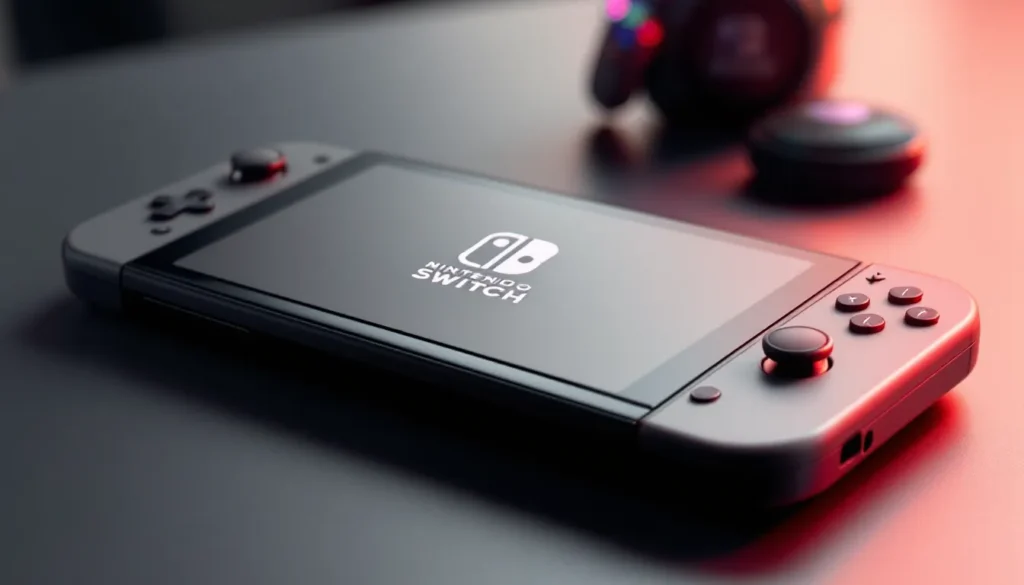
On the Switch, there’s no physical camera. Instead, the Capture Button on the left Joy-Con lets players take screenshots in virtually every game and record up to 30 seconds of gameplay footage in supported titles. This shift from hardware cameras to software capture mirrors broader industry trends, prioritizing ease of sharing over real-world photography.
In-game photo modes, dedicated tools within games that pause action and let players frame shots with filters, poses, and camera controls, have become the real evolution of “Nintendo Camera.” Titles like The Legend of Zelda: Tears of the Kingdom and Animal Crossing: New Horizons include robust photography systems that rival standalone camera apps in complexity.
The History of Camera Features in Nintendo Devices
Nintendo DSi and 3DS Camera Capabilities
The Nintendo DSi, released in 2008, was Nintendo’s first handheld with built-in cameras, one facing outward, one facing the player. Both captured images at 0.3 MP (640×480 resolution), which was underwhelming even by 2008 standards. The DSi Camera app included 11 lens filters and basic editing tools like warping and doodling, turning the feature into more of a toy than a practical camera.
Still, games began integrating the camera in creative ways. WarioWare: Snapped. used facial recognition for microgames. Pokémon Dream Radar on 3DS let players “catch” Pokémon by pointing the camera at real-world environments through AR overlays.
The Nintendo 3DS (2011) upgraded to dual 0.3 MP cameras on the back for stereoscopic 3D photos, gimmicky, but novel. The front camera remained 0.3 MP. The 3DS Camera app added more effects, including the ability to merge faces and create stop-motion animations. Photo quality was still potato-tier by smartphone standards, but the AR Games bundled with the system showed how camera integration could enhance gameplay.
Nintendo Switch and Photo Modes
The Switch launched in 2017 with no physical camera. Instead, Nintendo leaned into the Capture Button, a single hardware input that fundamentally changed how players documented their experiences.
At launch, the button only captured screenshots (1280×720 in handheld, 1920×1080 when docked). In October 2017, with system update 4.0.0, Nintendo added 30-second video recording for select titles. As of 2026, nearly all major first-party games support video capture, though some third-party titles remain screenshot-only.
The real shift came from developers building dedicated photo modes. Games like Super Smash Bros. Ultimate and Animal Crossing: New Horizons include advanced in-game cameras with adjustable FOV, filters, character poses, and lighting controls. These tools transformed how players interact with the Capture Button, it’s no longer just about preserving a moment, but about composing one.
How to Use the Camera on Nintendo Devices
Taking Photos on Nintendo 3DS
Using the camera on 3DS is straightforward but limited by hardware age:
- Launch the Camera app from the HOME Menu.
- Select Inner or Outer camera (front-facing or rear dual cameras).
- Frame your shot using the touchscreen or D-pad for digital zoom (2x max).
- Tap the L or R button to capture. Photos save to the SD card in
.MPOformat (for 3D images) or.JPG(for 2D). - Apply effects post-capture by selecting the image and choosing from filters, stamps, or drawings.
The 3DS Camera app also supports stop-motion animation (up to 60 frames) and merging photos to create composite images. Quality is rough, these aren’t meant for serious photography, but the creative tools hold up as quirky experiments.
Using In-Game Photo Modes on Nintendo Switch
Photo modes vary by game, but most follow similar controls:
- Pause the game and access the photo mode (often through a dedicated camera item or menu).
- Position the camera using the right analog stick (pan) and left stick (move, if free-roam is enabled).
- Adjust settings: zoom, tilt, depth of field, filters, and brightness.
- Capture the shot using the in-game button prompt, then press the Capture Button on the Joy-Con to save it to your album.
In The Legend of Zelda: Tears of the Kingdom, the Camera Rune (from the Purah Pad) lets you snap photos of enemies, materials, and wildlife for the Hyrule Compendium. It’s functional, not artistic, no filters or poses, but essential for completionists.
Animal Crossing: New Horizons flips the script with a full-featured camera app accessed via the NookPhone. Players can apply eight filters, adjust zoom, and trigger expressions on villagers mid-shot. It’s one of the most robust photo tools on Switch.
Capturing Screenshots and Videos
The Capture Button is on the left Joy-Con, below the directional buttons:
- Press once to take a screenshot. The Switch saves it instantly to the album.
- Hold for ~1 second to record the last 30 seconds of gameplay (in supported games).
Screenshots save at 1920×1080 when docked, 1280×720 in handheld. Videos record at 720p/30fps regardless of mode. Files are stored on internal memory or the microSD card.
Not all games support video capture. As of 2026, major Nintendo titles (Mario, Zelda, Splatoon 3, etc.) do, but some third-party games block the feature due to licensing or performance concerns. When attempting to record in unsupported titles, the Switch displays a “capture is not available” message.
To access saved content:
- Open the HOME Menu.
- Select Album.
- Browse screenshots and videos, then choose Posting or Editing to share via social media or transfer to a smartphone using the QR code method.
Best Nintendo Games With Photography Features
New Pokémon Snap and Pokémon Snap 64
Pokémon Snap (N64, 1999) was the original photography-as-gameplay title. Players rode an automated rail cart through Pokémon Island, snapping photos of wild Pokémon for Professor Oak to rate based on size, pose, technique, and centering. It was niche but beloved.
New Pokémon Snap (Switch, April 2021) is the modern successor, expanding the concept into a full-fledged photography sim. Players explore the Lental region across multiple biomes, using items like Fluffruit and Illumina Orbs to trigger unique Pokémon behaviors. The game’s AI rates each shot on four criteria:
- Pose: Is the Pokémon doing something interesting?
- Size: How much of the frame does it occupy?
- Direction: Is it facing the camera?
- Placement: Is it centered?
Scores range from 1 to 4 stars, with Legendary shots (Diamond ratings) rewarded for perfect captures. The game includes a Re-Snap feature that lets you adjust brightness, blur, zoom, and filters post-capture, essentially a full photo editor.
New Pokémon Snap remains the gold standard for Nintendo photography games, blending gameplay objectives with genuine creative expression.
The Legend of Zelda: Breath of the Wild and Tears of the Kingdom
Both Breath of the Wild (2017) and Tears of the Kingdom (2023) include a Camera Rune (or Camera function in TotK’s Purah Pad). The tool is utilitarian: snap a photo of an enemy, weapon, or material to register it in the Hyrule Compendium, which then marks that item on the map with the Sensor+.
The camera lacks filters, zoom, or composition tools, it’s a gameplay mechanic first, artistic tool second. That said, players have turned BotW and TotK into virtual photography showcases by pausing mid-action, angling the camera with the right stick, and capturing dynamic combat or environmental moments.
The Self Mode (first-person view) in both games lets Link “take a selfie” by facing the camera toward himself. Combined with creative use of the environment, lightning strikes, blood moons, Guardian beams, players have crafted some of the most iconic Nintendo screenshots of the past decade. Communities on Reddit and Twitter regularly share their best shots, treating these tools like makeshift photo modes.
Super Smash Bros. Ultimate Photo Mode
Super Smash Bros. Ultimate (2018) includes a dedicated Camera Mode accessible by pausing during matches. It’s one of the most feature-rich photo tools on Switch:
- Free camera movement: Full 3D control with zoom, tilt, and rotation.
- Pause/resume time: Freeze action mid-attack or scrub through the last few seconds frame-by-frame.
- Filters: Sepia, monochrome, and comic-book effects.
- Zoom range: From extreme close-ups to wide battlefield shots.
- Stage and character lighting: Adjust brightness and depth of field.
Camera Mode shines during chaotic 8-player battles or when capturing Final Smashes. The ability to rewind time slightly and reposition the camera means you’ll never miss a perfect moment. Many players use Camera Mode to create memes, wallpapers, or highlight reels for montages.
Animal Crossing: New Horizons Camera App
The Camera app in Animal Crossing: New Horizons (2020) is accessed via the NookPhone and offers surprising depth:
- 8 filters: including noir, antique, and pop (vibrant colors).
- Zoom control: 1x to 2x digital zoom.
- Villager reactions: Pressing A prompts nearby villagers to look at the camera or display emotions.
- Handheld mode: The camera rotates smoothly with gyro controls, making framing easier.
The Camera app is perfect for documenting island designs, seasonal events, or villager interactions. Nintendo has used gaming communities to highlight the creative side of ACNH photography, with players staging elaborate scenes using furniture, custom designs, and timed events like meteor showers or fireworks.
Screenshots from ACNH are among the most shared on social media, thanks to the game’s aesthetic appeal and the Camera app’s ease of use.
Tips and Tricks for Better Nintendo Photography
Mastering Composition and Angles
Good composition isn’t just for DSLRs, Nintendo’s in-game cameras benefit from the same principles:
- Rule of thirds: Many photo modes include a grid overlay. Position subjects at intersection points rather than dead center for dynamic shots.
- Leading lines: Use environmental elements, roads, rivers, railings, to guide the viewer’s eye toward the subject.
- Foreground interest: In games with depth-of-field control (like Smash Ultimate), place objects close to the camera and blur the background for a cinematic look.
- Experiment with height: Low angles make characters look heroic: high angles create vulnerability or scale.
In New Pokémon Snap, the game’s scoring system rewards centered, well-lit shots, but the most memorable photos often break these rules, catching a Pokémon mid-leap at the edge of the frame, or framing a sunset with silhouetted creatures.
Using Filters and Effects
Filters can elevate a decent shot into something striking, but they’re easy to overuse:
- Monochrome/noir: Best for dramatic scenes, storms, shadowy interiors, or high-contrast lighting.
- Sepia/antique: Works well for nostalgic moments or retro-themed stages (e.g., Smash Ultimate’s Pac-Maze).
- Pop/vibrant: Enhances colorful environments like Animal Crossing islands or Splatoon 3 arenas.
- Natural/no filter: Often the best choice. Over-filtering can make images look artificial.
In Animal Crossing: New Horizons, the Pop filter is a favorite for autumn and cherry blossom seasons, punching up reds, oranges, and pinks. The Dramatic filter adds vignetting and contrast, perfect for moody nighttime shots.
Some players prefer capturing raw screenshots and editing externally. The Switch’s Album allows image transfer to smartphones via QR code, where apps like Snapseed or Lightroom Mobile can fine-tune exposure and color balance.
Transferring and Sharing Your Photos
Getting your screenshots off the Switch has improved since launch but still isn’t seamless:
Method 1: Social Media (Fastest)
- Open the Album and select an image.
- Choose Posting and Editing → Post.
- Link your Facebook or Twitter account and upload directly.
Downside: Compression reduces quality slightly.
Method 2: Smartphone Transfer (Best Quality)
- Select up to 10 images in the Album.
- Choose Send to Smartphone.
- Scan the QR code with your phone’s camera, then scan a second QR code to connect.
- Images download at full resolution.
Downside: Tedious for bulk transfers.
Method 3: MicroSD Card (Bulk Transfer)
- Power off the Switch and remove the microSD card.
- Insert it into a PC or card reader.
- Navigate to
Nintendo/Album/[year]/[month]/[day]/to find.jpg(screenshots) and.mp4(videos).
Downside: Requires removing the card and risks data corruption if not ejected properly.
As of early 2026, many players hope for a system update enabling cloud-based album syncing, but Nintendo hasn’t confirmed plans. For now, transfer methods remain the primary workflow for serious virtual photographers.
Nintendo Camera Accessories and Hardware
Compatible SD Cards and Storage Options
The Nintendo Switch supports microSD, microSDHC, and microSDXC cards up to 2 TB (though cards above 512 GB are rare and expensive as of 2026). Nintendo recommends cards with UHS-I (Ultra High Speed Phase I) and read speeds of 60-95 MB/s for optimal performance.
For photography-focused players:
- 64 GB: Adequate for casual use. Holds approximately 18,000 screenshots or 7 hours of video.
- 128 GB: Recommended for players who capture frequently. ~36,000 screenshots or 14 hours of video.
- 256 GB or higher: Necessary if you’re also storing game downloads alongside media.
Brands like SanDisk, Samsung EVO Select, and Lexar offer reliable UHS-I cards at reasonable prices. Avoid off-brand cards from marketplaces, counterfeit cards are common and can corrupt save data or captured media.
The Nintendo 3DS uses standard SD cards (up to 2 GB) or SDHC cards (4-32 GB). The system ships with a 4 GB card, which holds around 3,000 photos at 0.3 MP resolution. Since the 3DS is discontinued, finding high-quality SD cards is straightforward, most modern SDHC cards are backward-compatible.
Third-Party Camera Enhancements
Because the Switch lacks a physical camera, “enhancements” are limited to peripherals that improve capture workflow or ergonomics:
- Capture card setups: For content creators, external capture cards like the Elgato HD60 S+ or AVerMedia Live Gamer Portable 2 Plus record gameplay at higher quality (1080p60) than the Switch’s built-in 30-second clips. This is overkill for casual photography but essential for streamers and YouTubers.
- Third-party Joy-Con grips: Some grips reposition the Capture Button or add a larger, more tactile button surface, making it easier to hit without looking. Useful during intense gameplay when you want to capture on reflex.
- MicroSD card readers: USB-C card readers that plug directly into smartphones streamline the transfer process, eliminating the need for QR codes or PC intermediaries.
For the 3DS, third-party accessories are mostly legacy at this point. Protective cases with lens covers for the dual cameras exist, but given the device’s age, they’re harder to find.
No official Nintendo-branded camera accessories exist beyond the hardware itself. The company has never released lens attachments, tripods, or external cameras for any device.
Troubleshooting Common Nintendo Camera Issues
Camera Not Working on 3DS
Symptom: The Camera app launches but displays a black screen, or the system freezes when attempting to take a photo.
Fixes:
- Restart the system: Hold the power button for 5 seconds, then power back on.
- Check for physical obstructions: Dust or debris on the camera lenses (front or back) can cause black screens. Wipe gently with a microfiber cloth.
- Update system software: Go to System Settings → Other Settings → System Update. Outdated firmware can cause camera glitches.
- Test in multiple apps: Try the AR Games or Face Raiders. If the camera works there but not in the Camera app, reinstall the app (requires system format or Nintendo support).
- Hardware failure: If none of the above work, the camera module may be physically damaged. Nintendo no longer officially repairs 3DS units as of 2026, but third-party repair shops can replace camera modules for $30-60.
Screenshot Button Not Responding on Switch
Symptom: Pressing the Capture Button does nothing, or screenshots appear corrupted.
Fixes:
- Check if the game supports capture: Not all games allow screenshots or video. Try pressing the button in a known-supported title (e.g., Mario Kart 8 Deluxe).
- Ensure the button isn’t stuck: Dirt or grime can jam the Capture Button. Use compressed air around the button edge, or gently press it multiple times to dislodge debris.
- Update Joy-Con firmware: Go to System Settings → Controllers and Sensors → Update Controllers. Outdated Joy-Con firmware can disable certain button functions.
- Test with a different Joy-Con: If you have a spare left Joy-Con, swap it in. If the button works, the original Joy-Con needs repair or replacement.
- Recalibrate or disconnect/reconnect Joy-Cons: From the HOME Menu, select Controllers → Change Grip/Order, then detach and reattach the Joy-Con.
If the button still doesn’t respond, it may be a hardware defect. Nintendo’s Joy-Con repair service costs around $40 (as of 2026), or you can attempt a DIY fix with replacement parts from iFixit, though this voids any remaining warranty.
Storage and Memory Card Errors
Symptom: “Unable to capture screenshot” or “Unable to save video recording” errors appear after pressing the Capture Button. Alternatively, the Album won’t load or displays corrupted thumbnails.
Fixes:
- Check available storage: Go to System Settings → Data Management → Manage Screenshots and Videos. If storage is full, delete old captures or transfer them to a PC.
- Verify microSD card integrity: Power off the Switch, remove the microSD card, and reinsert it firmly. Boot the system and try capturing again.
- Format the microSD card: Back up all data to a PC, then go to System Settings → System → Formatting Options → Format microSD Card. This wipes the card but resolves corruption issues.
- Test without the microSD card: Remove the card and try capturing with internal storage only. If it works, the microSD card is faulty or incompatible.
- Replace the card: Counterfeit or low-quality cards fail frequently. Purchase a reputable UHS-I card (SanDisk, Samsung, etc.).
If errors persist even with new storage, the Switch’s internal memory or SD card slot may be damaged. Contact Nintendo support or visit an authorized repair center. Some troubleshooting resources also provide community-sourced fixes for uncommon errors not covered in official documentation.
Conclusion
Nintendo’s approach to cameras and photography has always been functional rather than flashy. The 3DS cameras were low-res but opened doors for AR gameplay. The Switch ditched physical cameras entirely, doubling down on software capture and in-game photo modes that put creative control in players’ hands. In 2026, the best Nintendo photography experiences aren’t about megapixels or sensor quality, they’re about games like New Pokémon Snap, Tears of the Kingdom, and Animal Crossing that turn photography into gameplay, storytelling, and self-expression. Whether you’re troubleshooting a stuck Capture Button or mastering composition in Smash Ultimate’s Camera Mode, understanding these tools unlocks a layer of Nintendo gaming that’s easy to overlook but rewarding once you dig in.